Zapier allows you to connect isofy with other apps using:
Triggers: Events in isofy that send data out (e.g., guest login sends data to HubSpot).
Actions: External events that send data into isofy (e.g., new Google Sheet entry adds a user to the dashboard).
Each client uses a unique API token to securely link data to their site.
Instructions to Create a Zap
Step 1: Go to Zapier and sign in or create an account
Step 2: Create a Zap
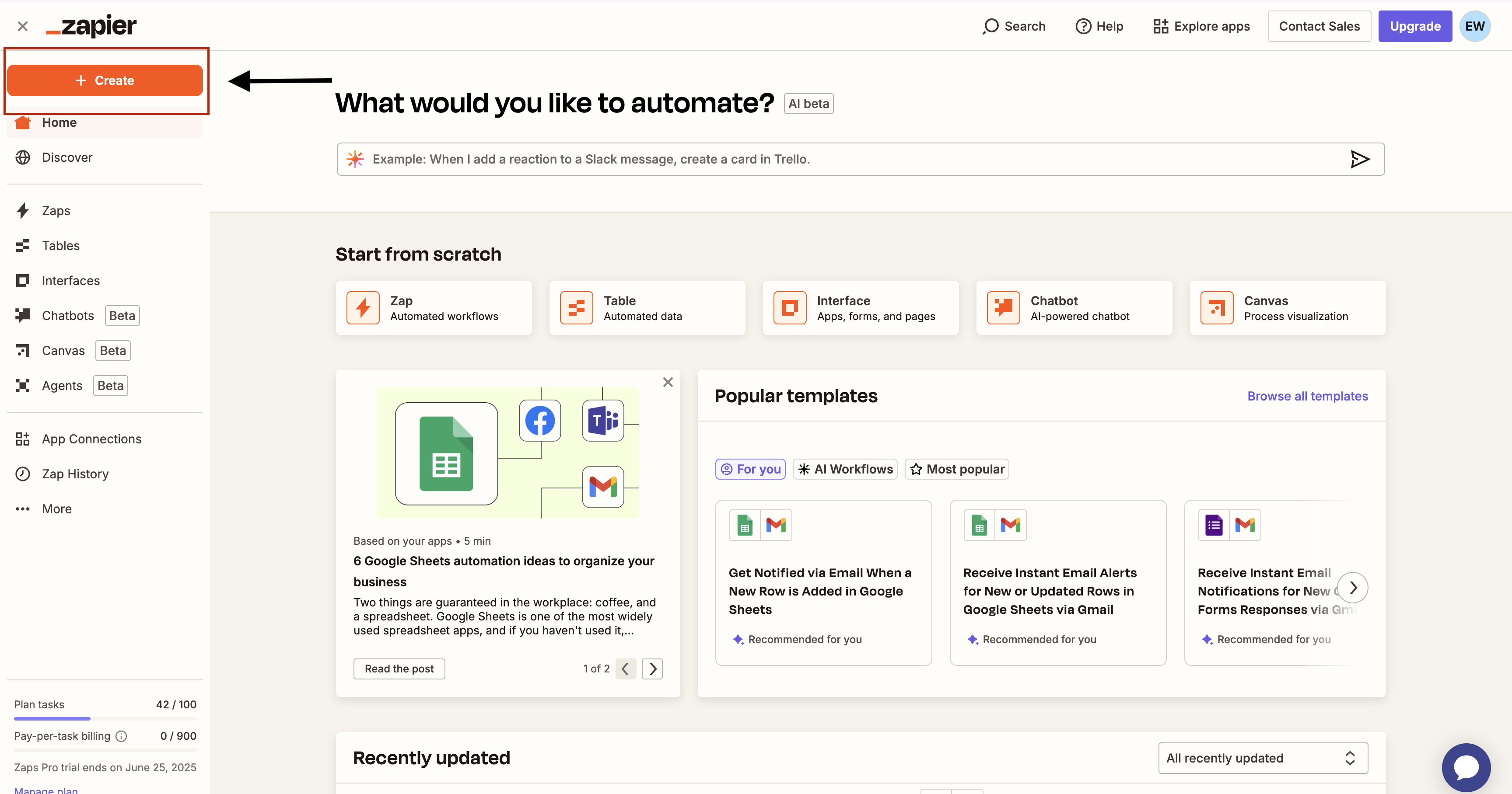
- Click the + Create button in orange, then Zaps
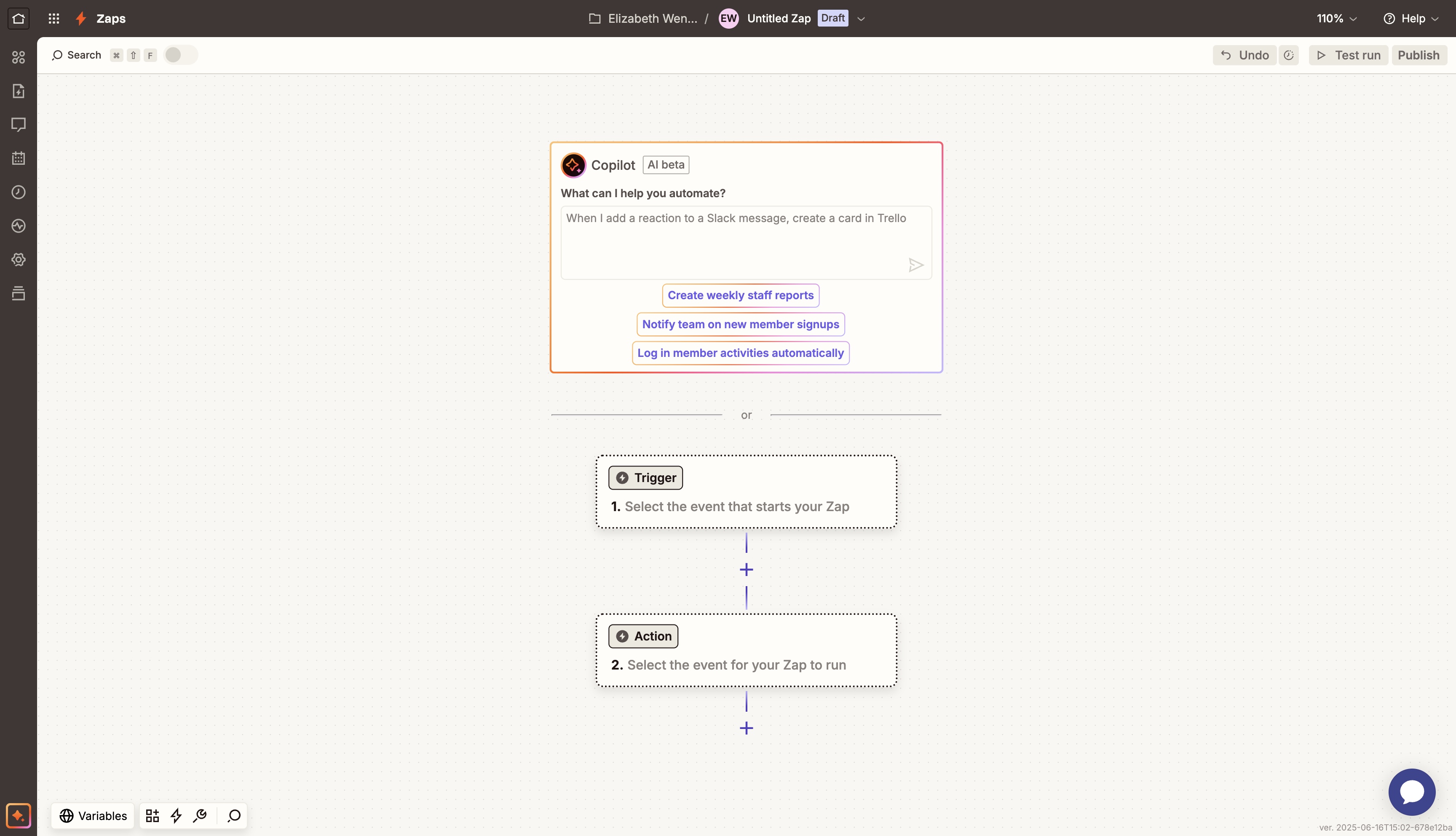
Step 3: Set up a Trigger
- Choose your trigger app (e.g., Google Sheets)
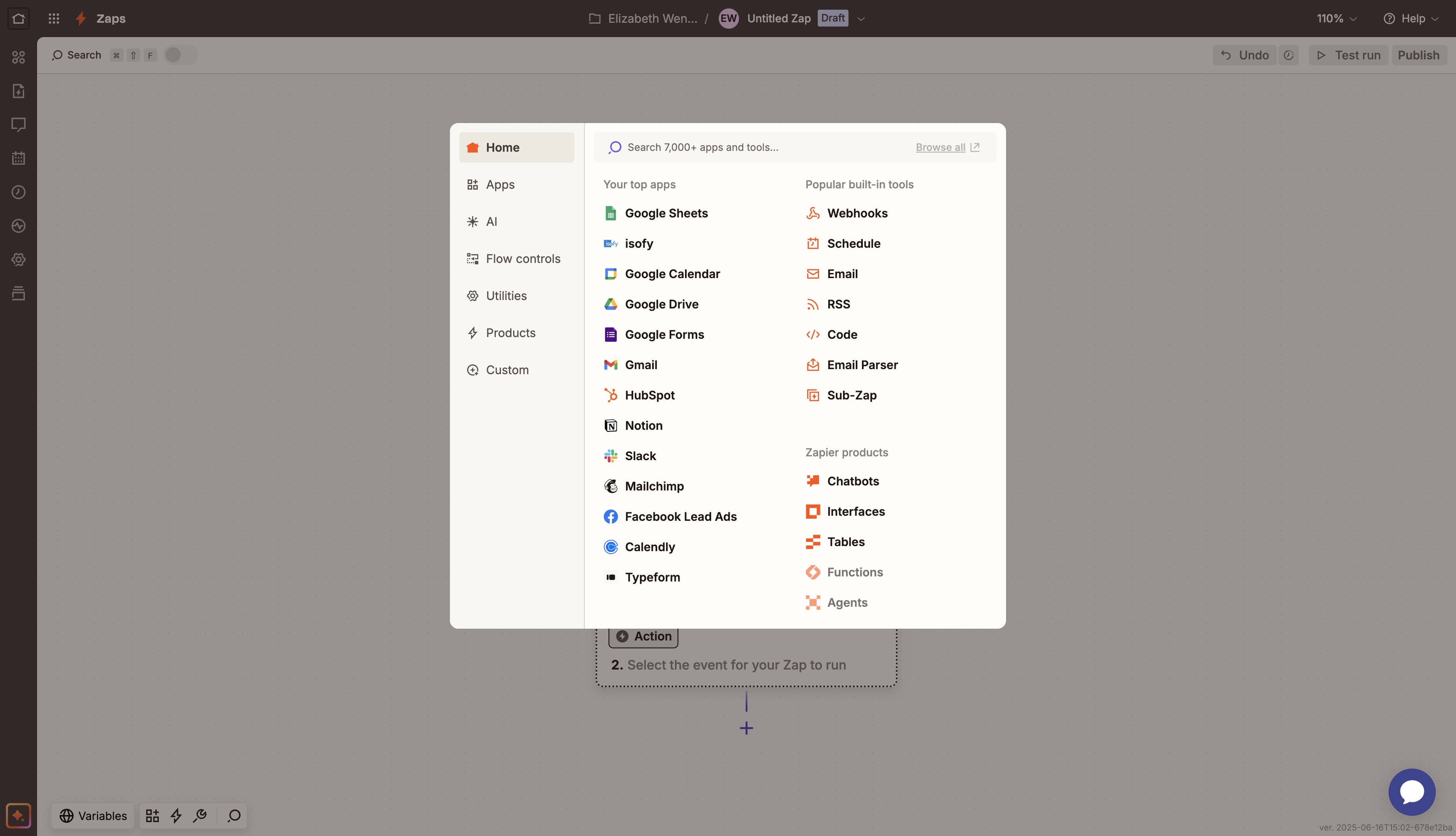
- Select a trigger event (e.g., “New Spreadsheet Row")
- Connect your app account
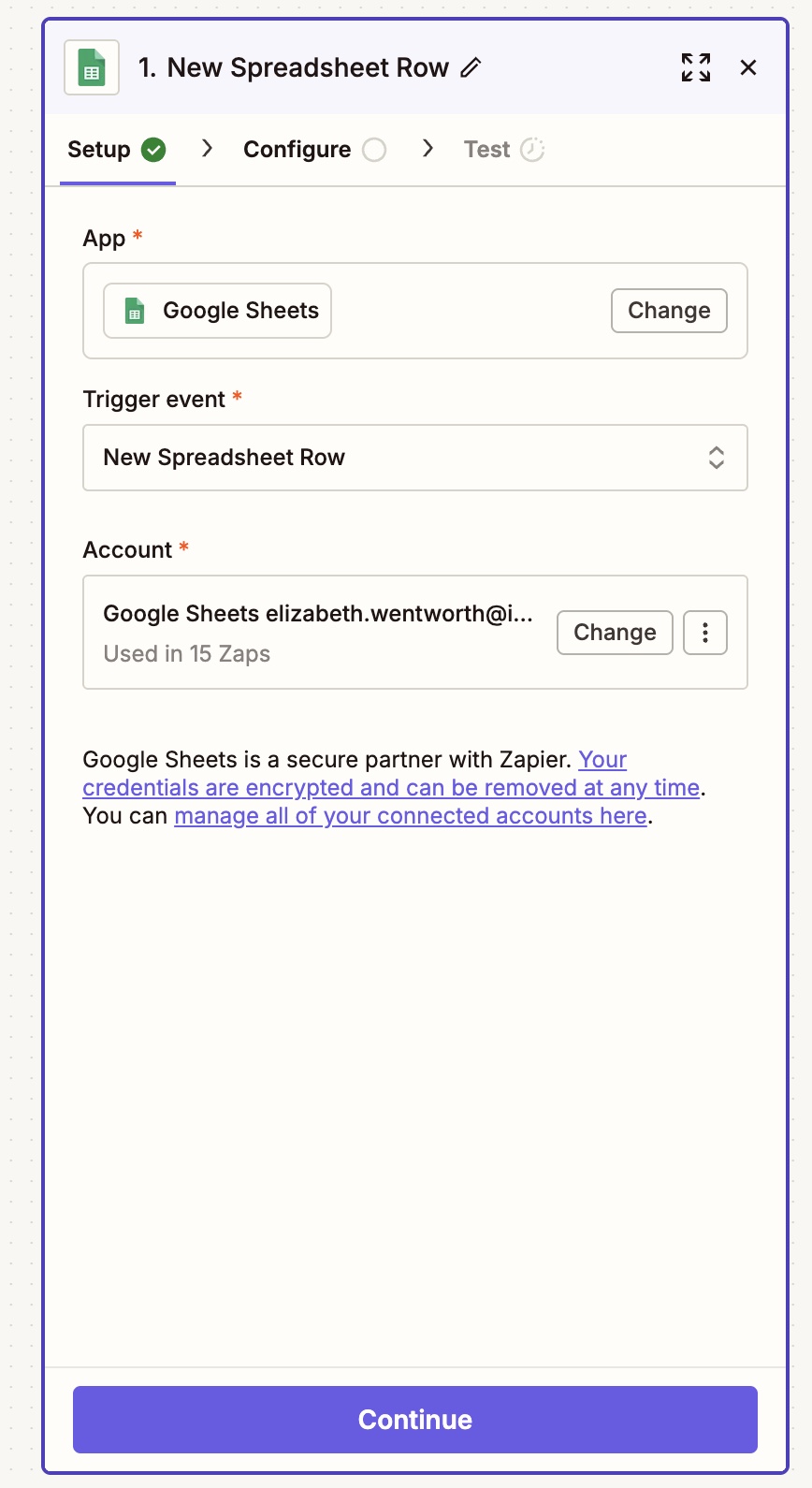
- Select the Spreadsheet and Worksheet for your Trigger
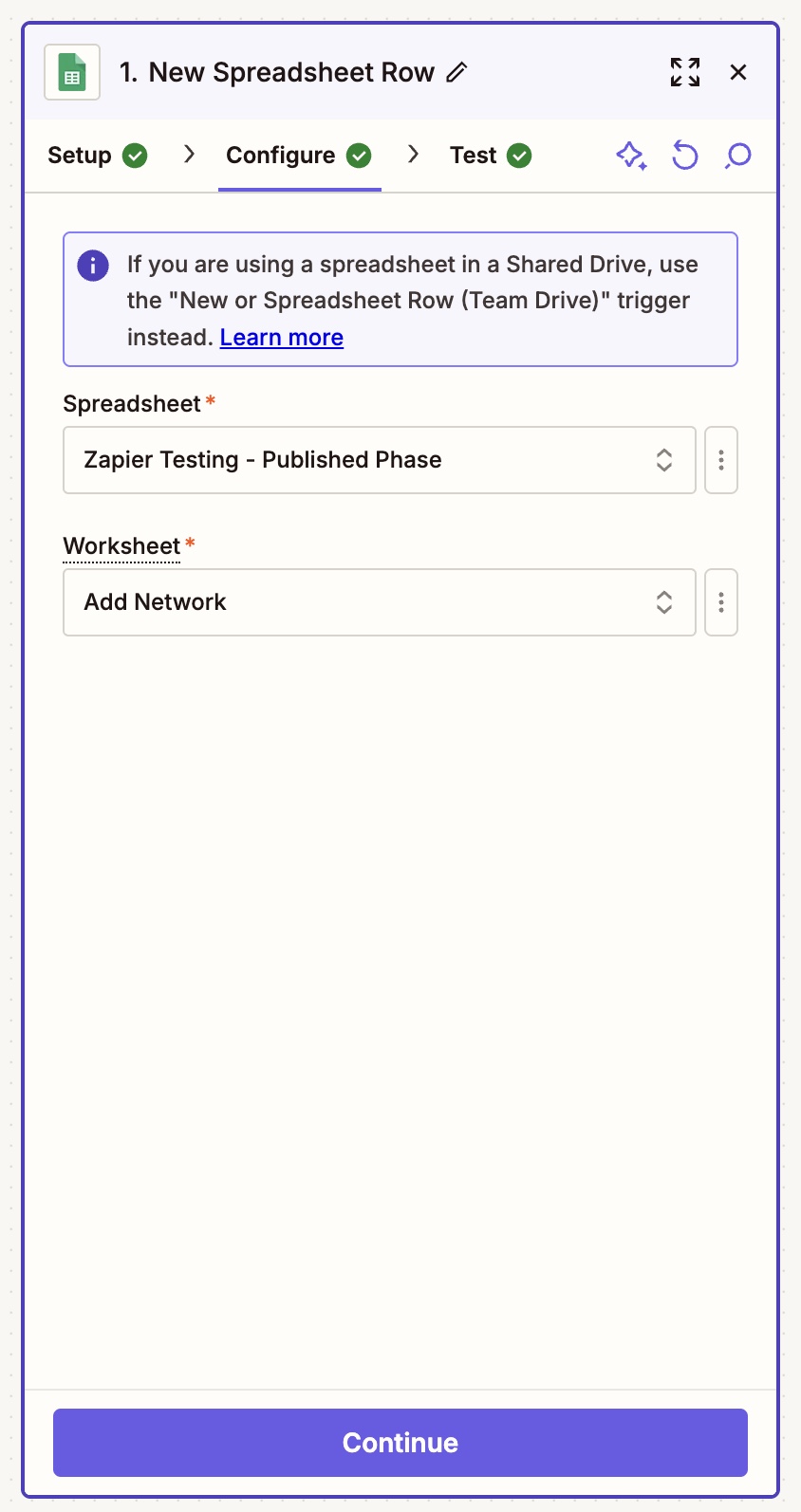
- Test the Trigger to ensure it's working
Step 4: Set up the Action
- Choose isofy as your action app
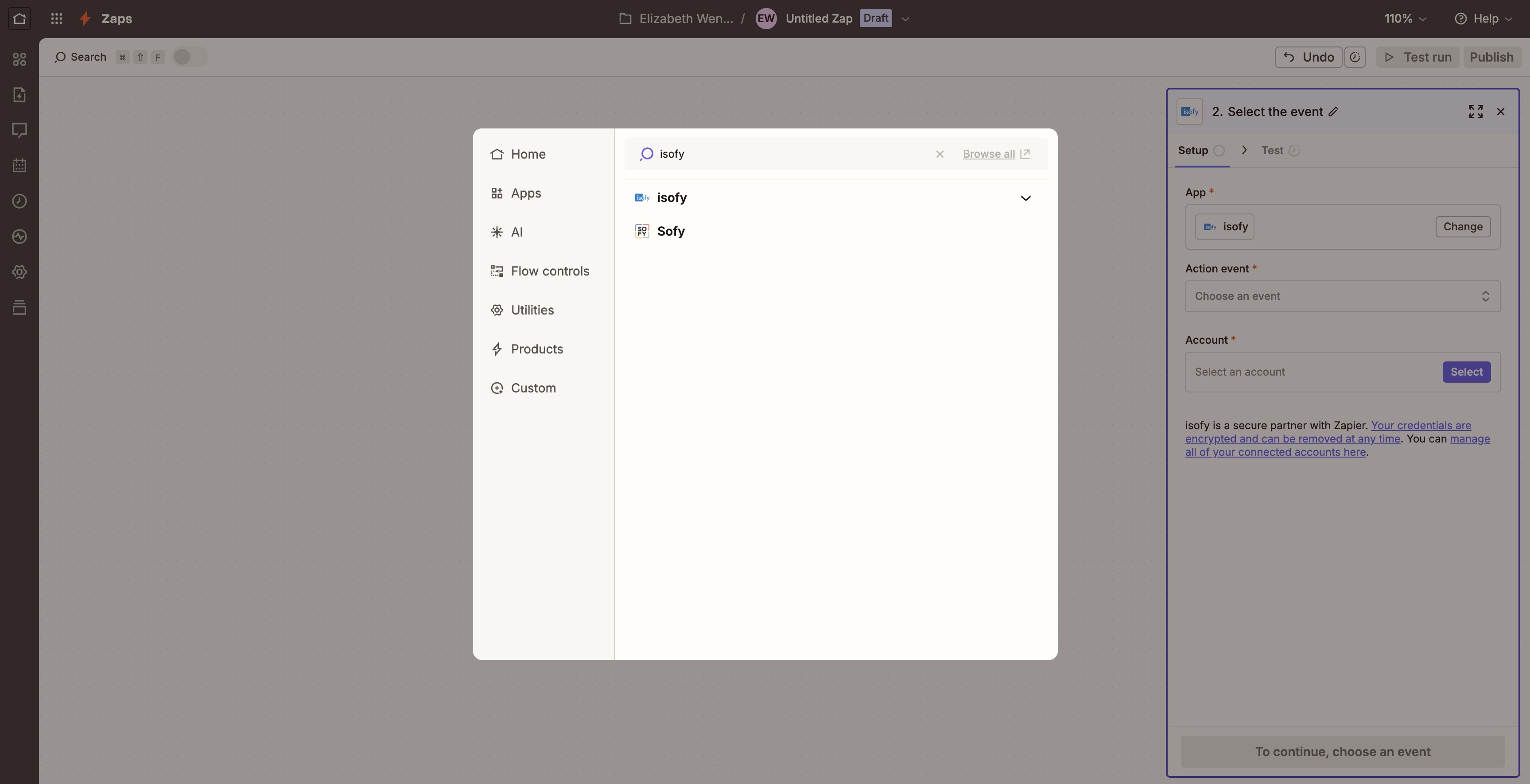
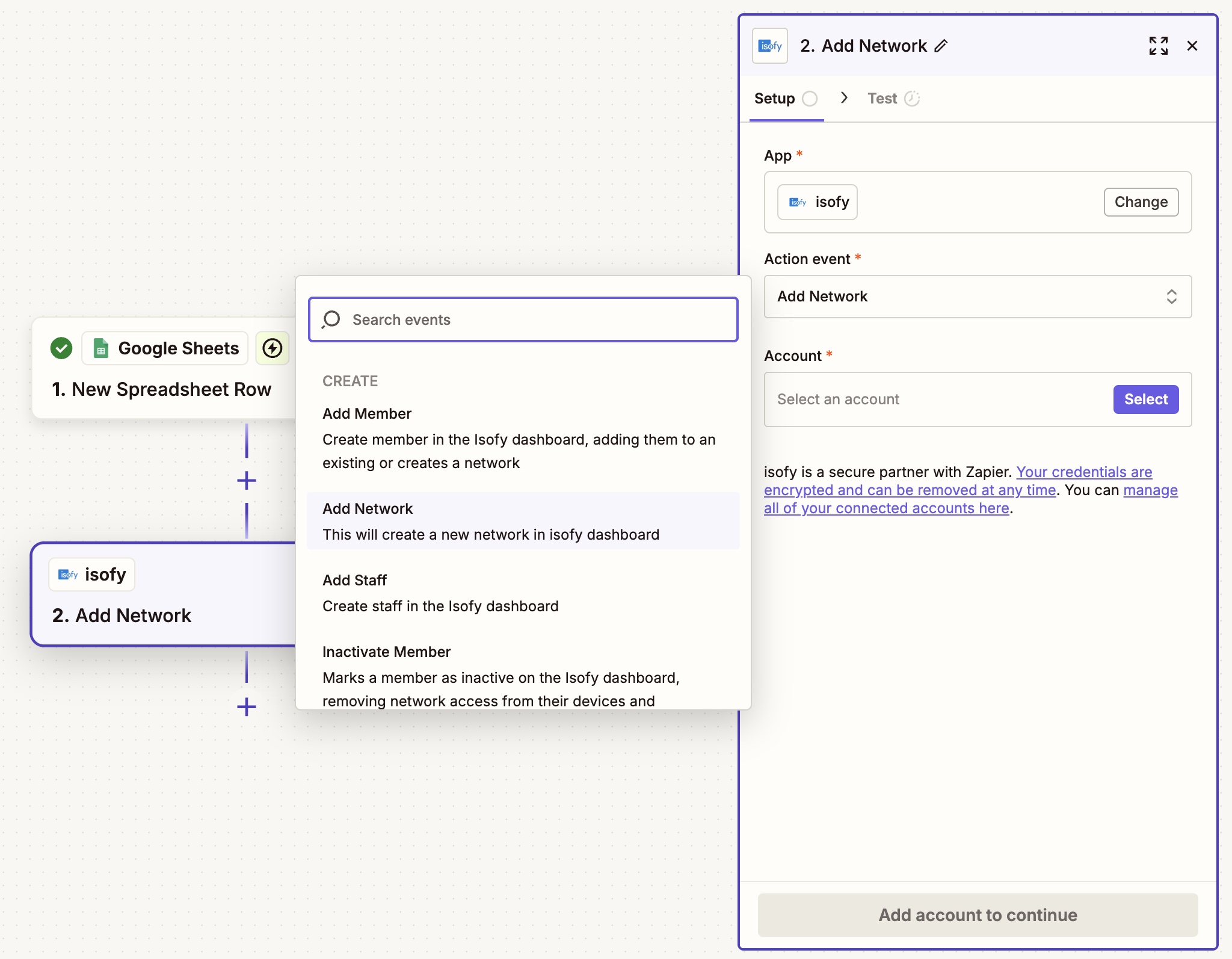
- Select an action event (e.g., “Add Member” or “Add Network”)
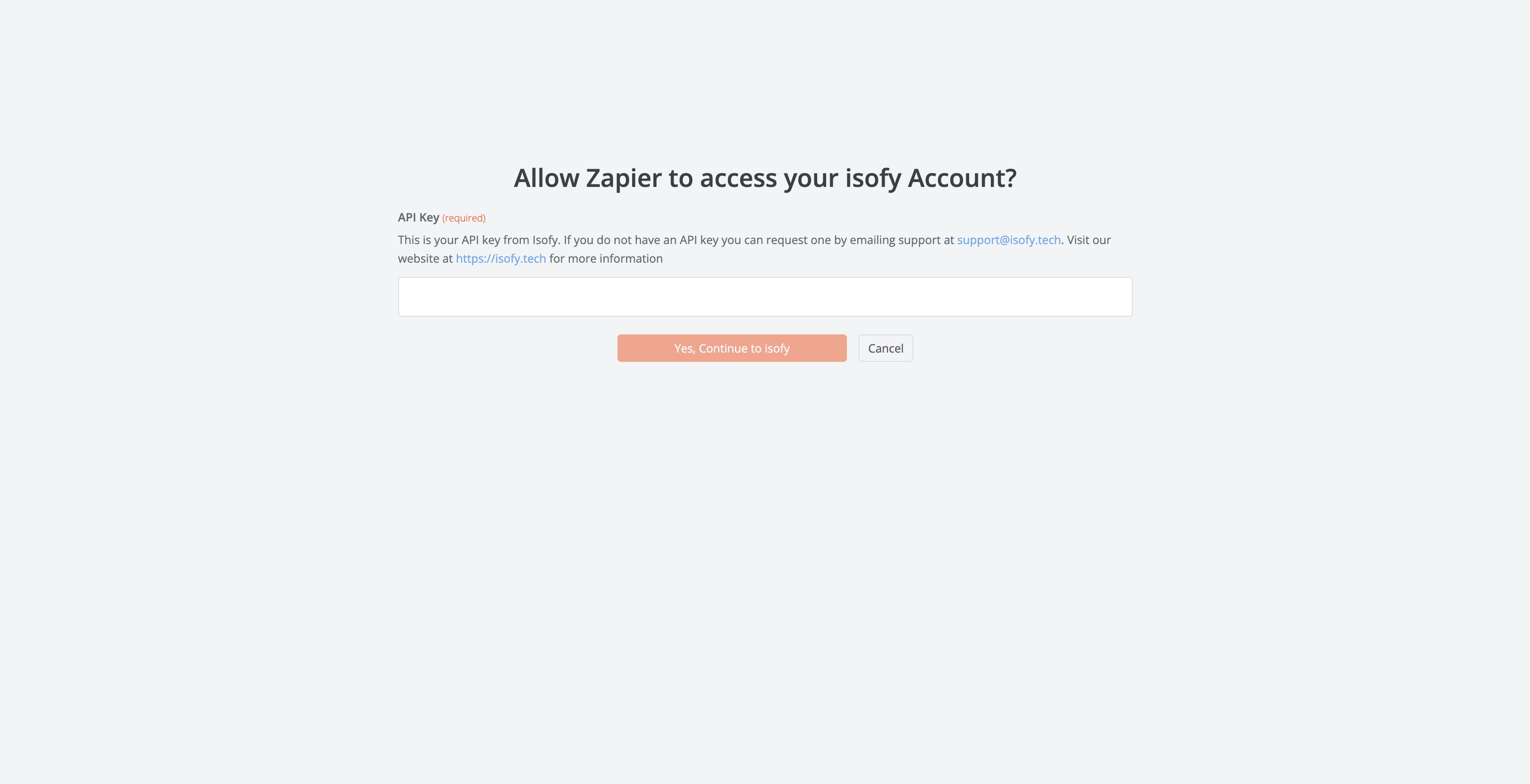
- Connect your isofy account using your API key
- If you do not have an API key email support@isofy.tech to request one
- Map the data from isofy to the appropriate fields
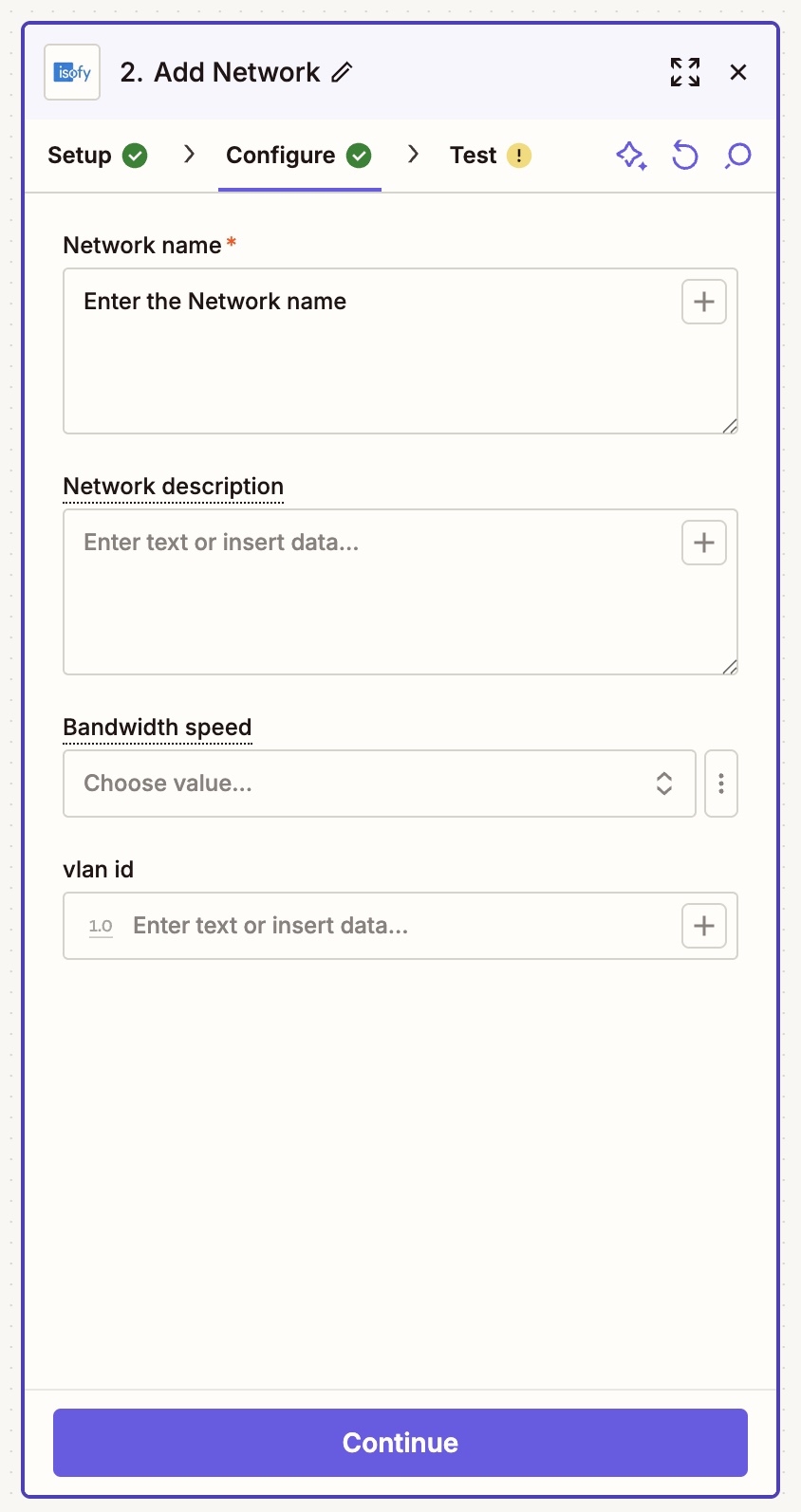
- Test the action to ensure it works as expected
Step 5: Name and Publish
- Give your Zap a clear name
- Click “Publish” to activate it
Visit the Zapier Help Center for more info.
Was this article helpful?
That’s Great!
Thank you for your feedback
Sorry! We couldn't be helpful
Thank you for your feedback
Feedback sent
We appreciate your effort and will try to fix the article