You can register devices that belong to the network (company) instead of a specific user. This is useful when you have devices like printers, phones, speakers, or cameras that do not belong to one member but rather are used by a team or organization. Manage shared devices on the Network Detail page.
TABLE OF CONTENTS
- Adding a Devices
- Converting a Member Device to a Shared Device
- Converting an Unassigned Device to a Shared Device
Adding a Device
To add a shared device, first navigate to Networks on the left navigation menu.
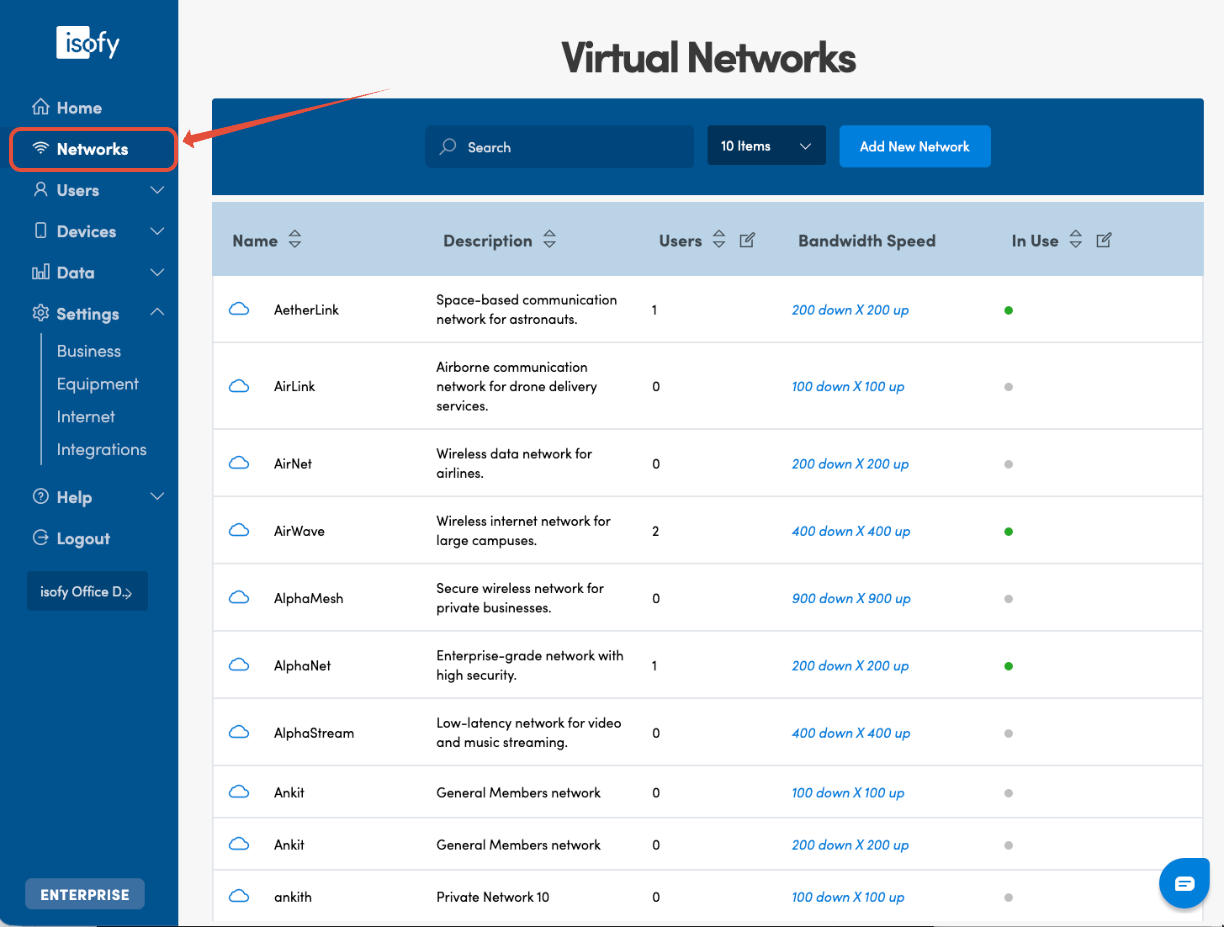
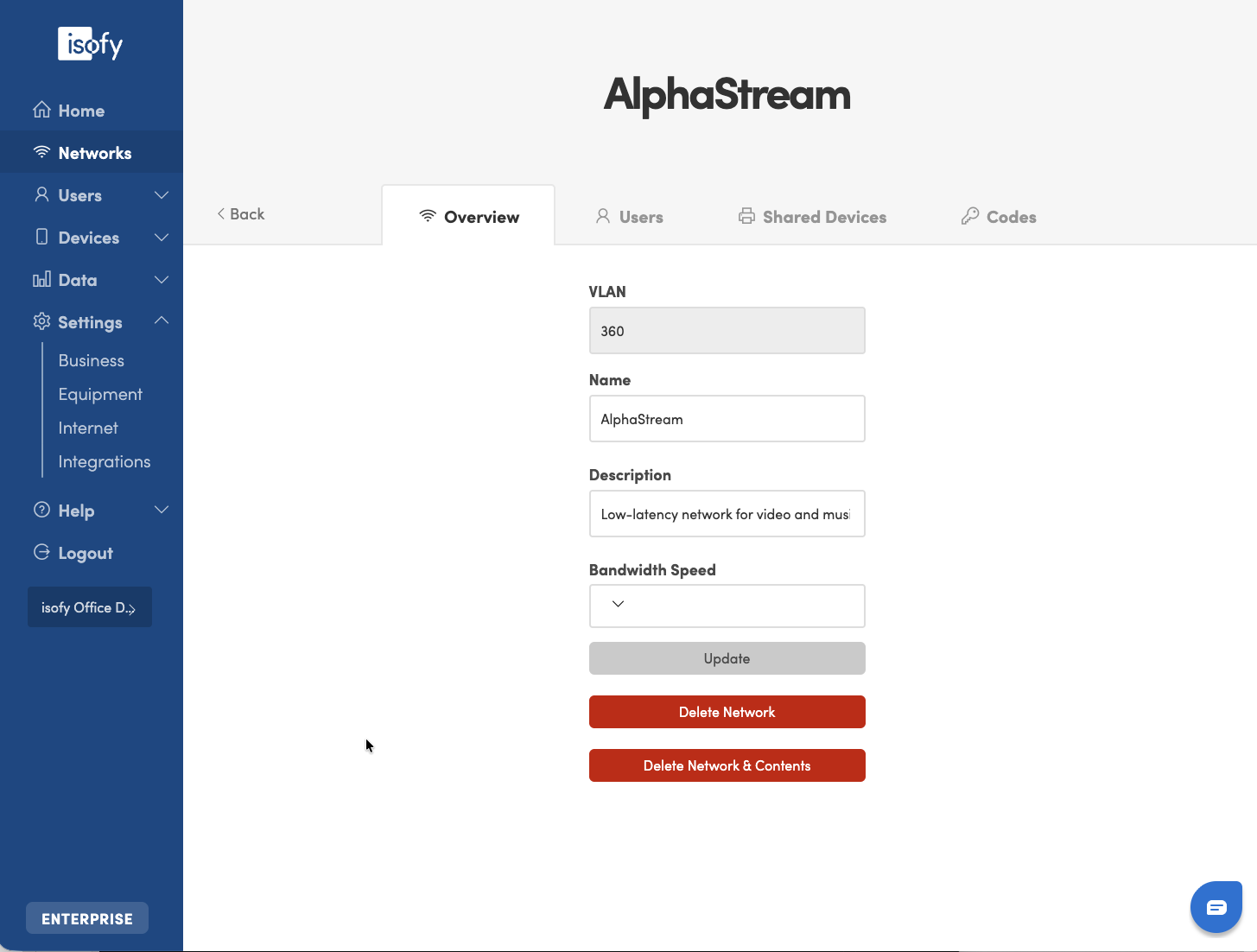
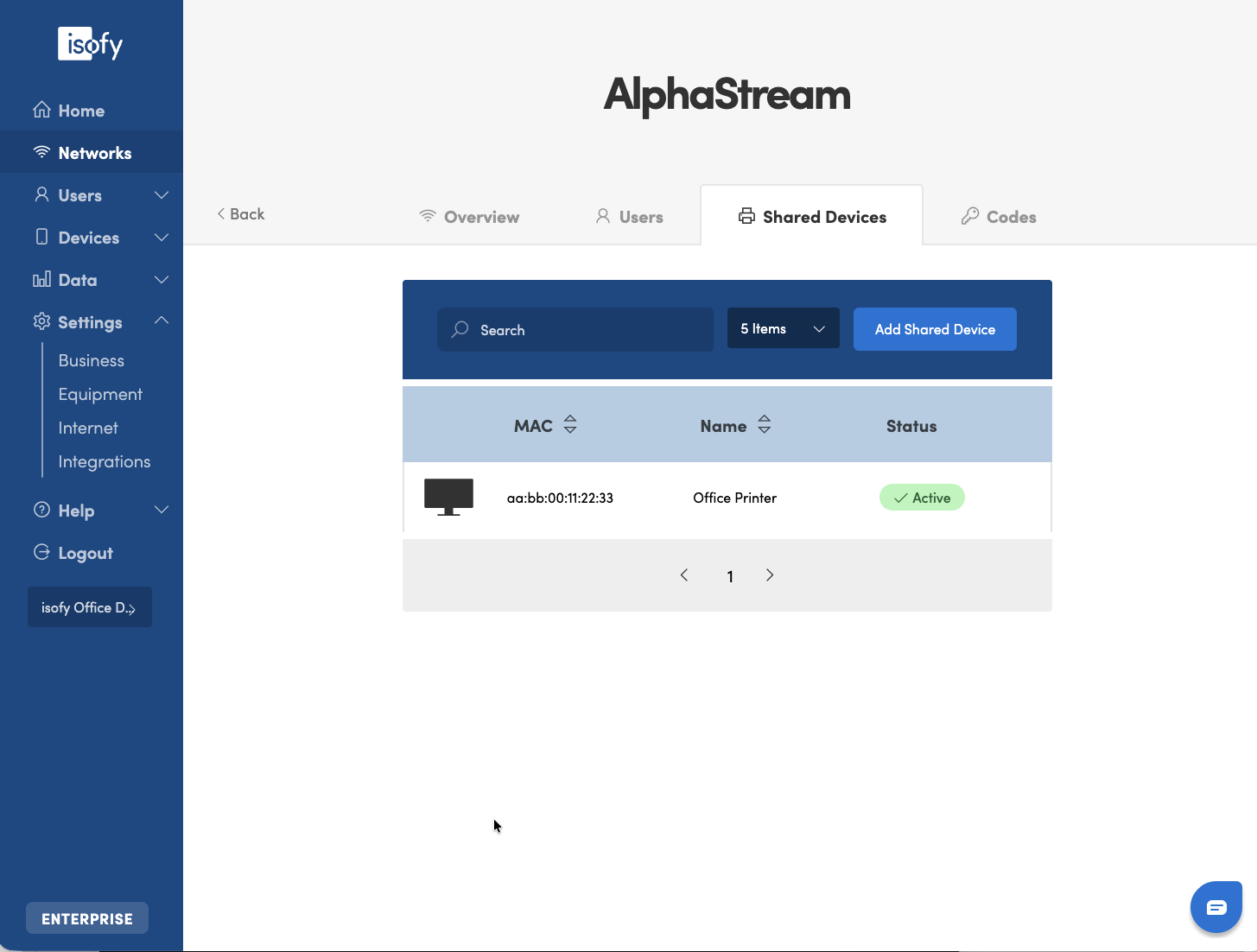
Select the network that you want to add the shared device to. In this example, "the "AlphaStream" network is selected.
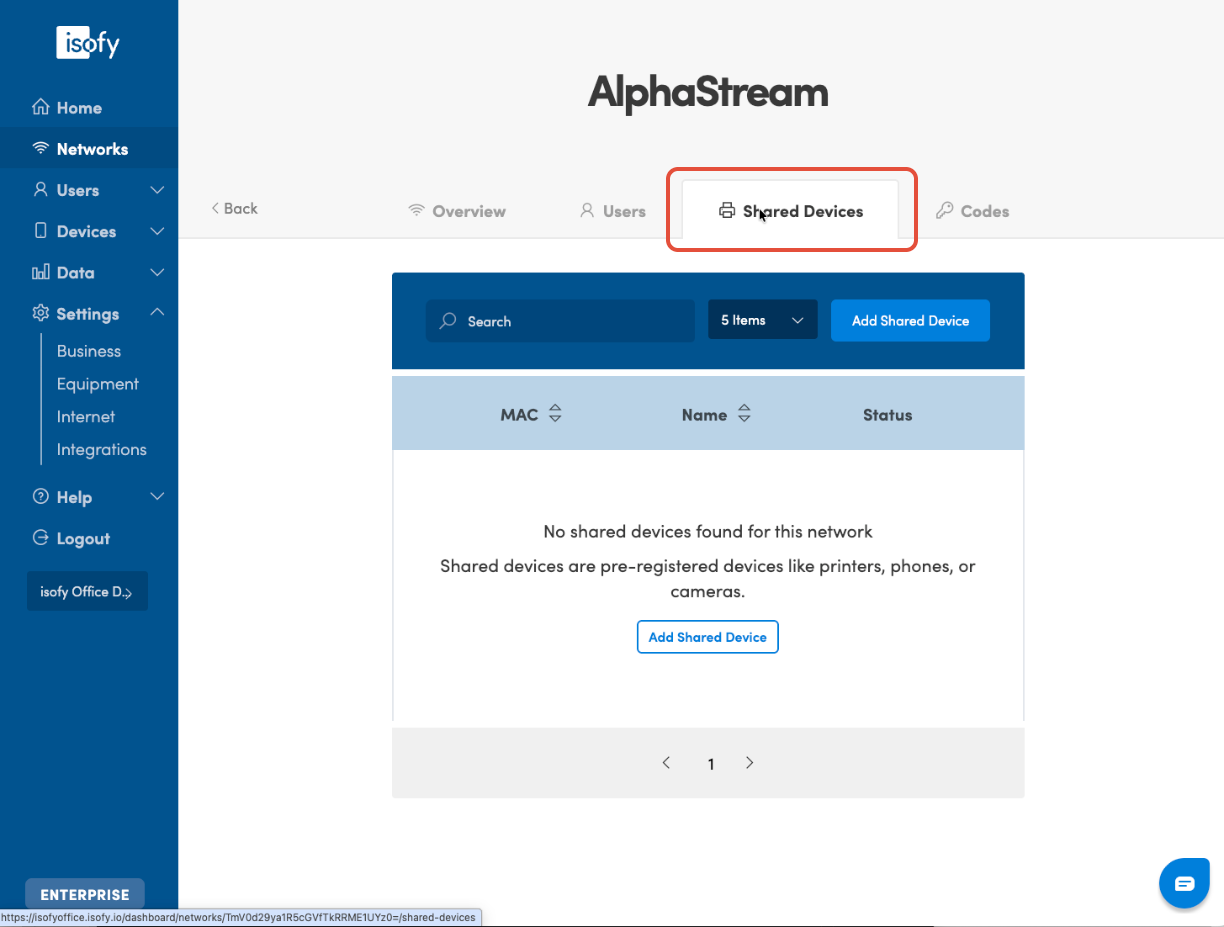
Then select the Shared Devices tab.
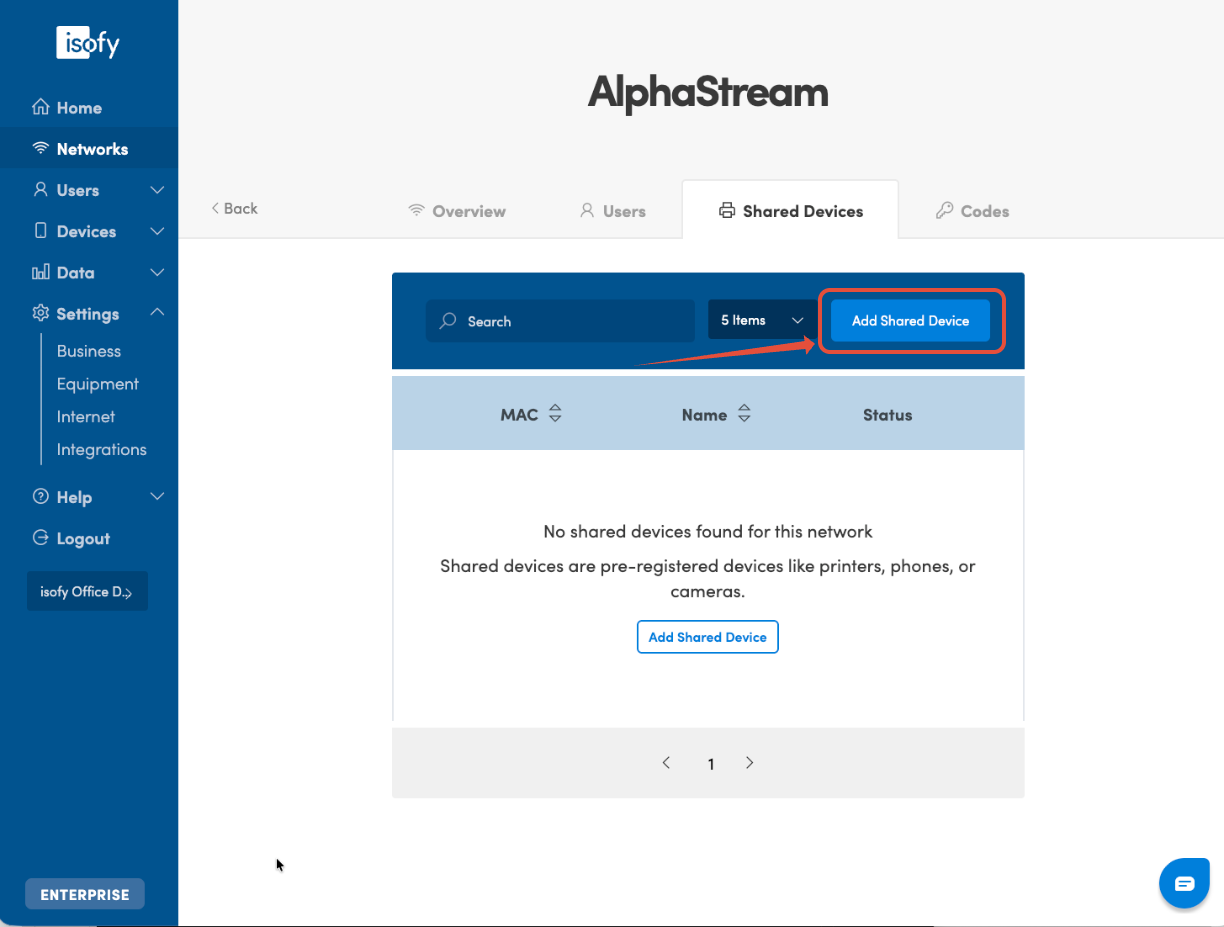
Then select Add Shared Device.
A dialog box will appear where you can add the shared device details. The MAC Address is required.
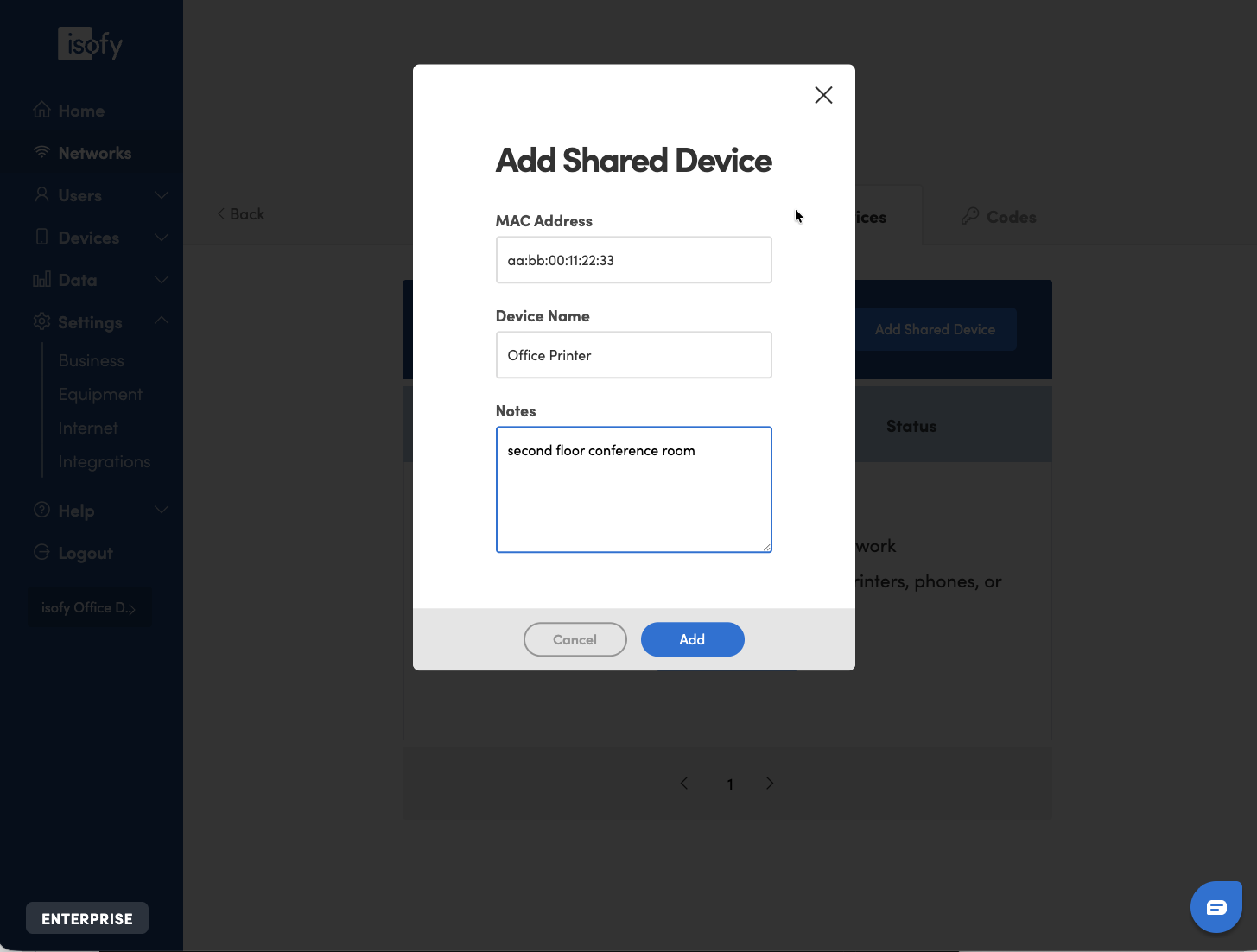
After providing the MAC Address and optional device name and notes, click Add. You should now see a success message.
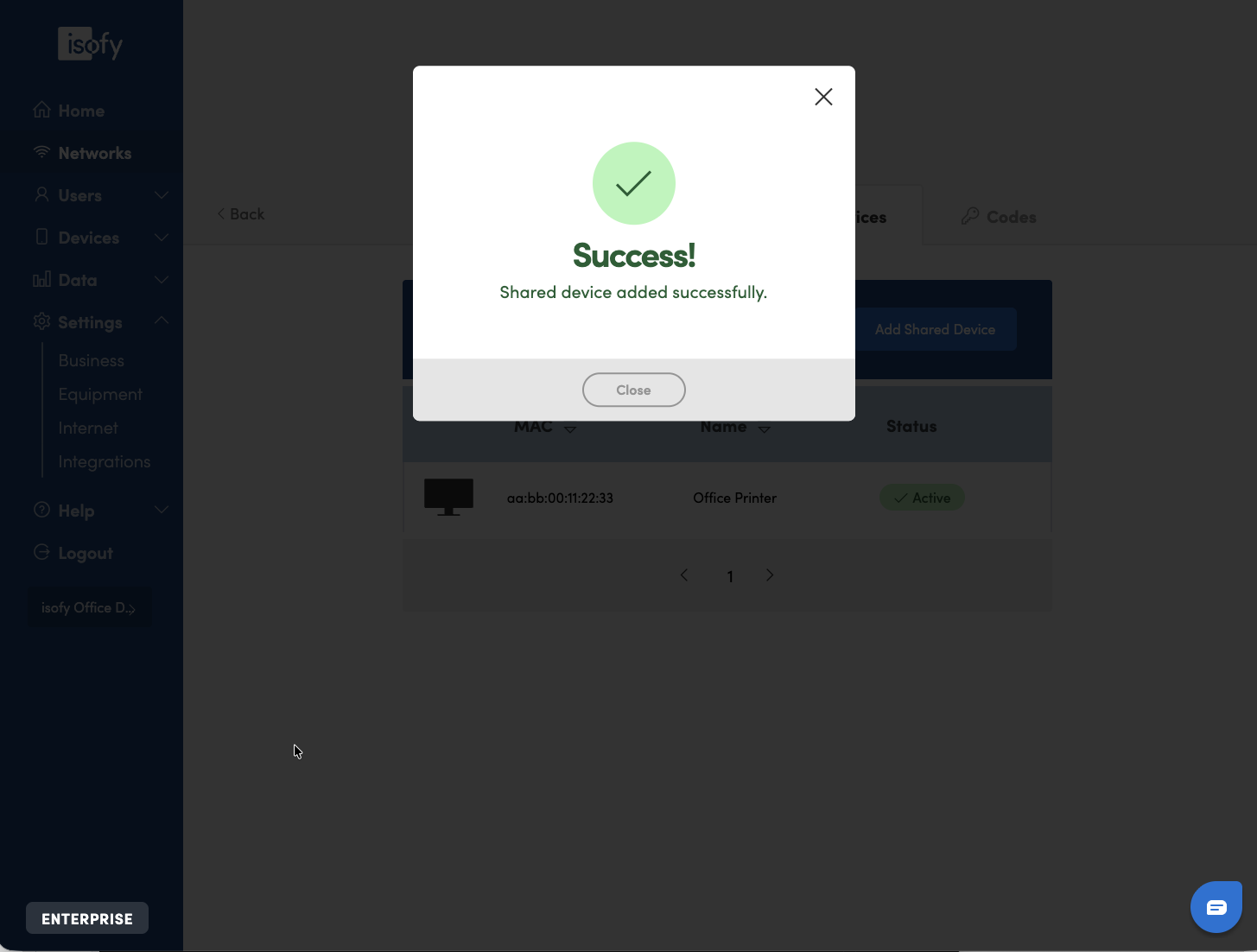
Click on Close and you will be returned to the Shared Devices list. Users on that network will now be able to connect to this device.
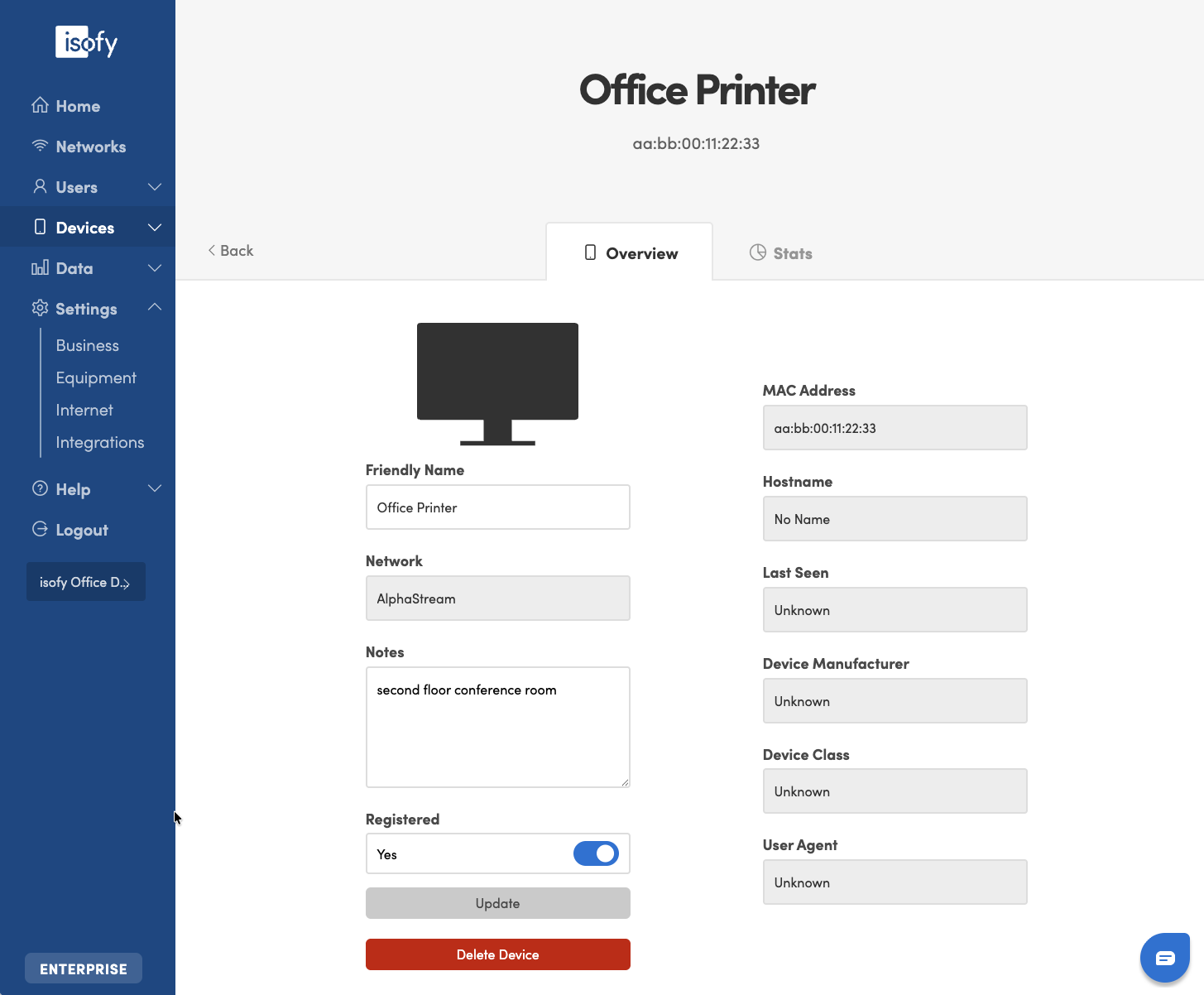
Device Details
Click on the device in the list to view or update device information, or to delete the device.
Converting a Member Device to a Shared Device
Shared device settings cannot be applied to an existing member-registered device. To convert it, you will need to remove the device from the member's account and re-add it as a shared device.
Note: The device may briefly lose network access during this process.
Step 1 - Remove the device from the member's account
- Navigate to Devices on the left navigation menu and select the device you want to convert.
- Copy the MAC address.
- Delete the device.
Step 2 - Re-add the device as a shared device
- Follow the steps in the Adding a Device section above to register the device under the correct network as a shared device.
Once added, all users on that network will have access to the device.
Converting an Unassigned Device to a Shared Device
Devices that are meant to be shared often show up in the Unassigned Devices list, where they can easily be converted to a shared device.
Step 1 - Find the device to assign as a Shared Device
- Navigate to Devices > Unassigned on the left navigation menu and select the device you want to convert.
- You may need to search, sort, or filter to find your device.
Step 2 - Assign the device as a shared device
- Click on "Add as Shared Device"
- Select the applicable Network (required)
- Optionally add a Device Name and Notes
- Click "Add"
Once added, all users on that network will have access to the device.
Was this article helpful?
That’s Great!
Thank you for your feedback
Sorry! We couldn't be helpful
Thank you for your feedback
Feedback sent
We appreciate your effort and will try to fix the article