Captive Portal Preview lets you experience your captive portal exactly as your members and guests do, without leaving the admin dashboard. You can interact with the forms, walk through the full sign-in flow, and verify that your branding and settings look right, all without a real device or network connection.
Table of Contents
- How to Access the Preview
- How the Preview Reflects Your Settings
- Testing the Sign-In Flow
- What Each Screen Shows
- Settings That Affect the Preview
- Things to Know
How to Access the Preview
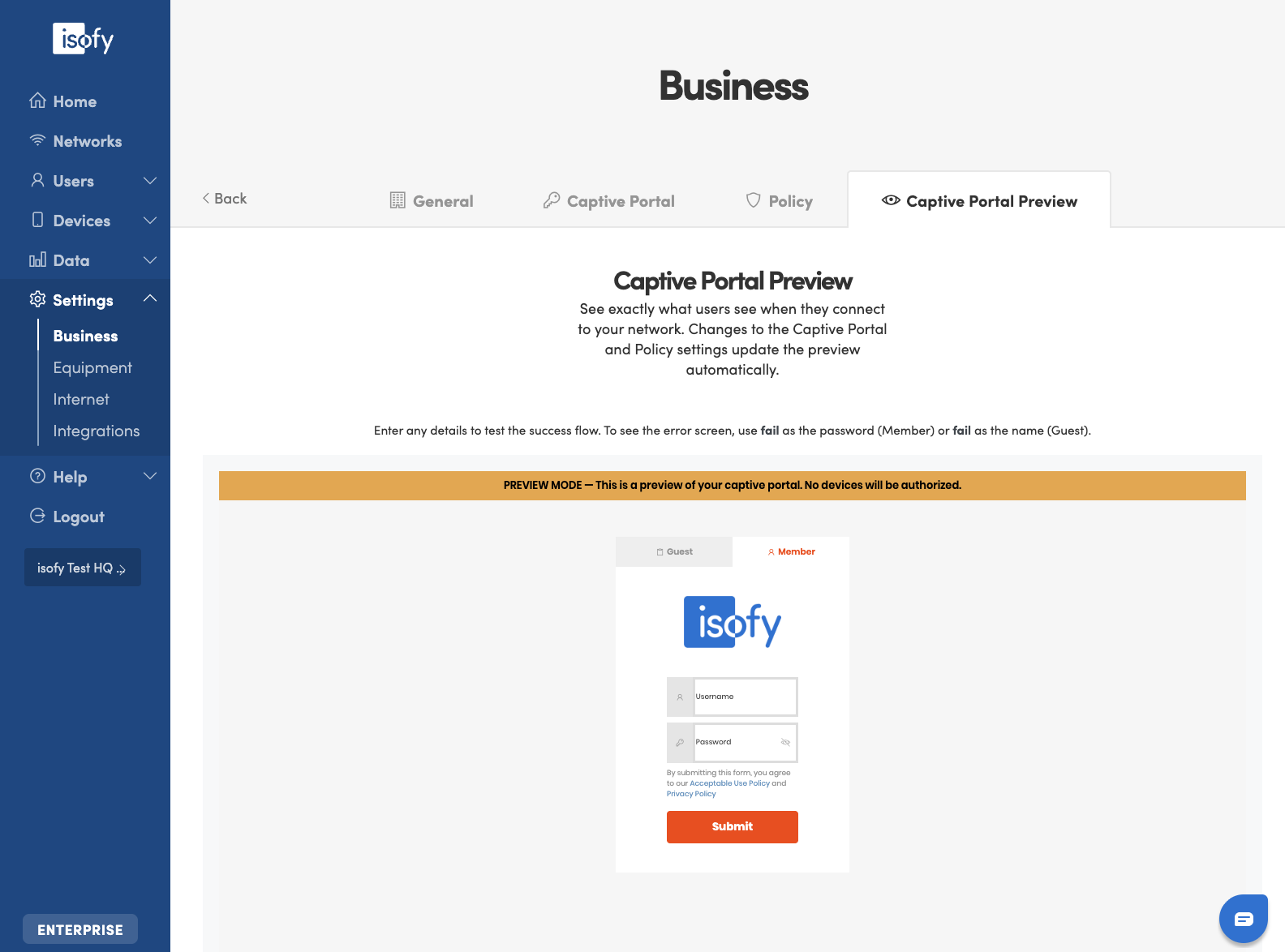
In the admin dashboard, go to Settings > Business and click the Captive Portal Preview tab. It is the last tab in the row, after General, Whitelabel, Sign-In, and Policy.
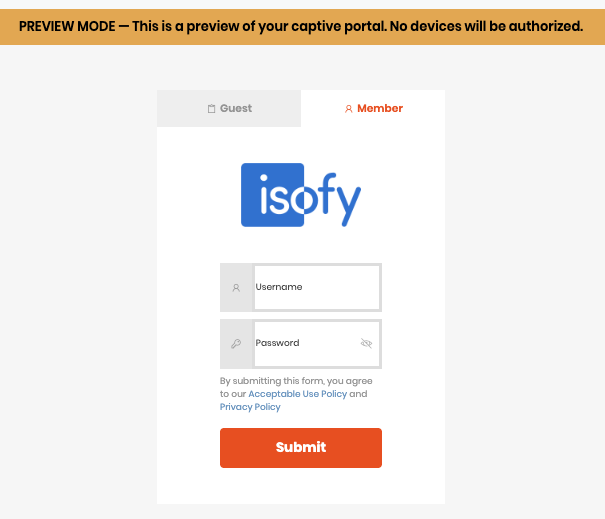
When the tab loads, the captive portal appears inside your dashboard exactly as your users see it. A yellow PREVIEW MODE banner sits at the top of the preview to remind you that nothing here affects your live network.
How the Preview Reflects Your Settings
The preview always shows your current settings. When you save a change on another tab, the preview refreshes automatically within a few seconds, so you do not need to reload anything manually.
- Whitelabel tab: updating your logo or brand color is reflected in the preview after you click Save.
- Sign-In tab: toggling Registration, Simplified Guest Experience, Email Verification, SMS Verification, or any other sign-in option updates the forms, tabs, and fields shown in the preview.
- Policy tab: changes to your Acceptable Use Policy are picked up in the preview.
Testing the Sign-In Flow
You can fill in the forms in the preview and click Submit to step through the experience end to end. Nothing in the preview affects your live system:
- No real accounts are created.
- No emails or SMS messages are sent.
- No devices are authorized on the network.
To walk through a successful sign-in, enter any values that pass the form's basic validation (any email and password for Member login, or any name, email, and phone for Guest registration) and click Submit. You will see every step of the live flow, including any verification pages you have enabled, the "Please wait while we secure your connection" page, and the final success message showing where users would be redirected.
To see the error path, submit invalid credentials. The preview shows the same error message that a real user would see when their credentials are rejected.
What Each Screen Shows
Depending on which Sign-In settings are enabled, the preview surfaces different screens. The list below covers every screen you may encounter while testing.
- Member Login: the username and password form shown when users tap the Member tab.
- Guest Registration: the name, email, and phone form shown when Simplified Guest Experience is enabled.
- Registration: the full registration form (name, email, phone, and password) shown when Registration is enabled.
- Guest / Member Tabs: when both Registration and Simplified Guest Experience are enabled, users see two tabs at the top to choose between Guest and Member. You can click between them in the preview.
- Email Verification: if Email Verification for Guest email is enabled, the preview shows the verification page after submission. It notes that, in live mode, a 6-digit verification code would be sent to the user's email. Enter any 6 digits to continue.
- SMS Verification: if SMS Verification for Guest phone number is enabled, the preview shows the SMS verification page. Enter any 6 digits to continue.
- Registration Code: for member registration, after SMS verification the preview shows the registration code page where users can optionally enter a code. Click Connect to continue.
- Forgot Password: click the "Forgot password?" link on the Member login page to see the inline reset form. Enter any email and click Reset to see the message confirming that, in live mode, a reset email would be sent. Click "Back to Login" to return.
- Acceptable Use Policy: the AUP link at the bottom of any form opens your business's AUP text in a new tab.
- Privacy Policy: the Privacy Policy link at the bottom opens the isofy privacy policy in a new tab.
- Authorization Success: after any successful submission you will see the "Please wait while we secure your connection..." spinner, then "Connection successful! You are now connected to the network.", a confirmation of the URL users would be redirected to, and a "Back to Login" button so you can test again.
Settings That Affect the Preview
Use this reference to confirm which settings will change what you see in the preview.
| Setting | Location | What changes in the preview |
|---|---|---|
| Logo | Whitelabel | Logo displayed at the top of the portal |
| Registration | Sign-In | Shows or hides the Register tab |
| Simplified Guest Experience | Sign-In | Shows or hides the Guest tab and form |
| Email Verification | Sign-In | Adds an email verification step after guest registration |
| SMS Verification | Sign-In | Adds an SMS verification step after guest registration |
| Guest Phone Optional | Sign-In | Makes the phone field optional on the guest form |
| Guest Hide Phone Field | Sign-In | Hides the phone field on the guest form |
| Sign-In Page Redirect URL | Sign-In | Shown on the authorization success page |
| Guest T&C | Sign-In | Displayed on the guest registration form |
| Acceptable Use Policy | Policy | Shown when clicking the AUP link inside the portal |
Things to Know
- Data in the preview is not real. No accounts are created, no emails or SMS are sent, no devices are authorized, and no network changes are made.
- The PREVIEW MODE banner is internal-only. Your members and guests never see it; it appears only inside the admin dashboard preview.
- What you see is what your users see. The preview renders the real captive portal with your real settings applied.
- Preview sessions last 30 minutes. If your session expires, switch to another tab and back to the Captive Portal Preview tab to refresh it automatically.
Was this article helpful?
That’s Great!
Thank you for your feedback
Sorry! We couldn't be helpful
Thank you for your feedback
Feedback sent
We appreciate your effort and will try to fix the article