The Help feature embeds support functionality and visibility directly into the isofy platform, allowing you to seamlessly view, create, and manage support tickets, as well as access and intelligently search knowledge base content in context.
- Create, respond, and view tickets directly from the dashboard
- New ticket creation with guided forms to capture the right details upfront
- Easier access to the knowledge base, including a new AI Assistant.
Help -> Tickets
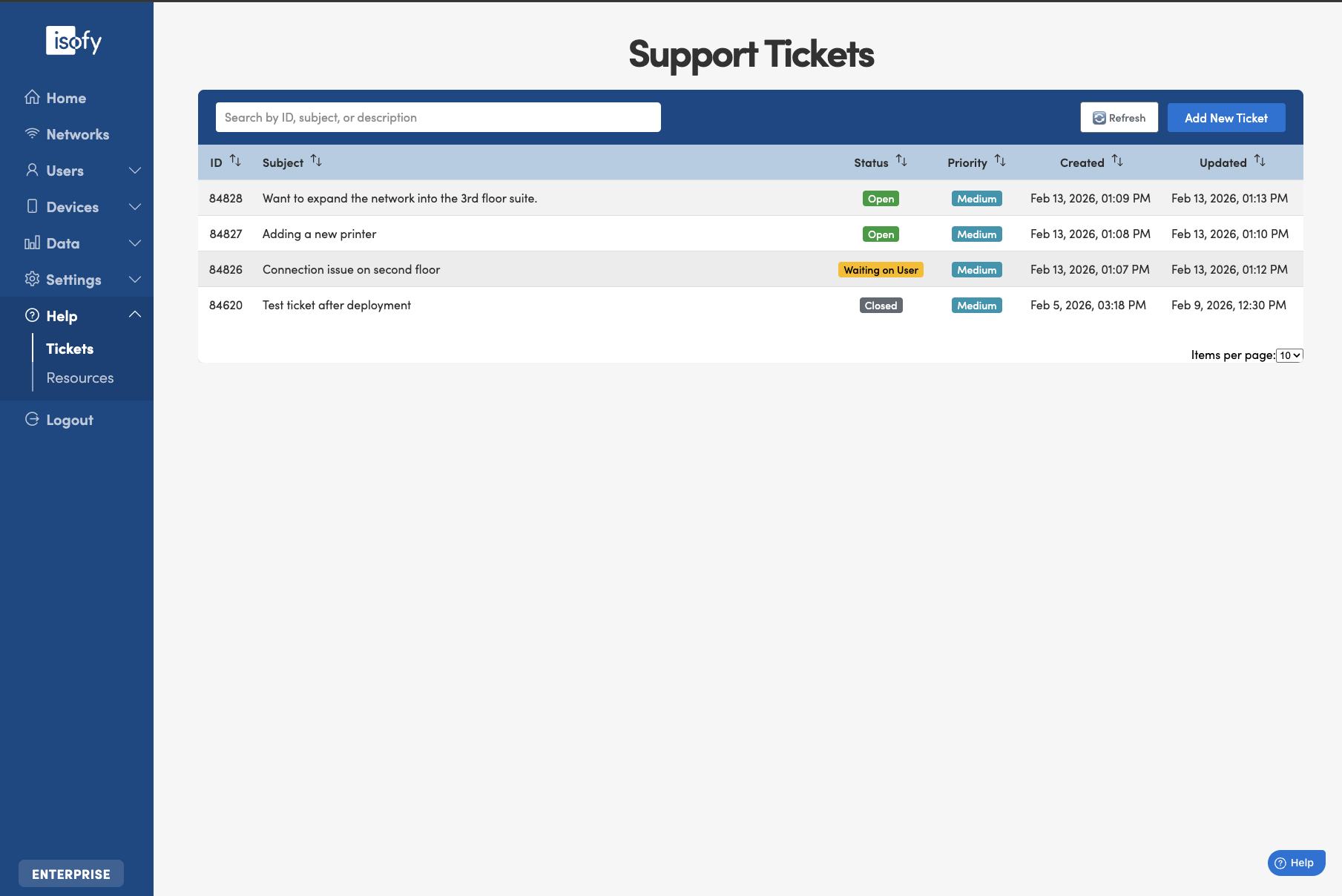
Support Tickets
Here you can access a listing of your most recent support tickets.
- It is sortable by ID, Subject, Status, Priority, Created, and Updated date/times.
- You can also search for specific text.
- Priority is determined by the applicable isofy SLA.
There are 3 key statuses:
- Open: the ticket has not yet been resolved and isofy is working on it
- Waiting on User: the ticket has not yet been resolved and isofy is waiting on site staff to respond
- Closed: the ticket has been resolved
Click on a row in the list to open the details for that ticket. For example, ticket 84826:
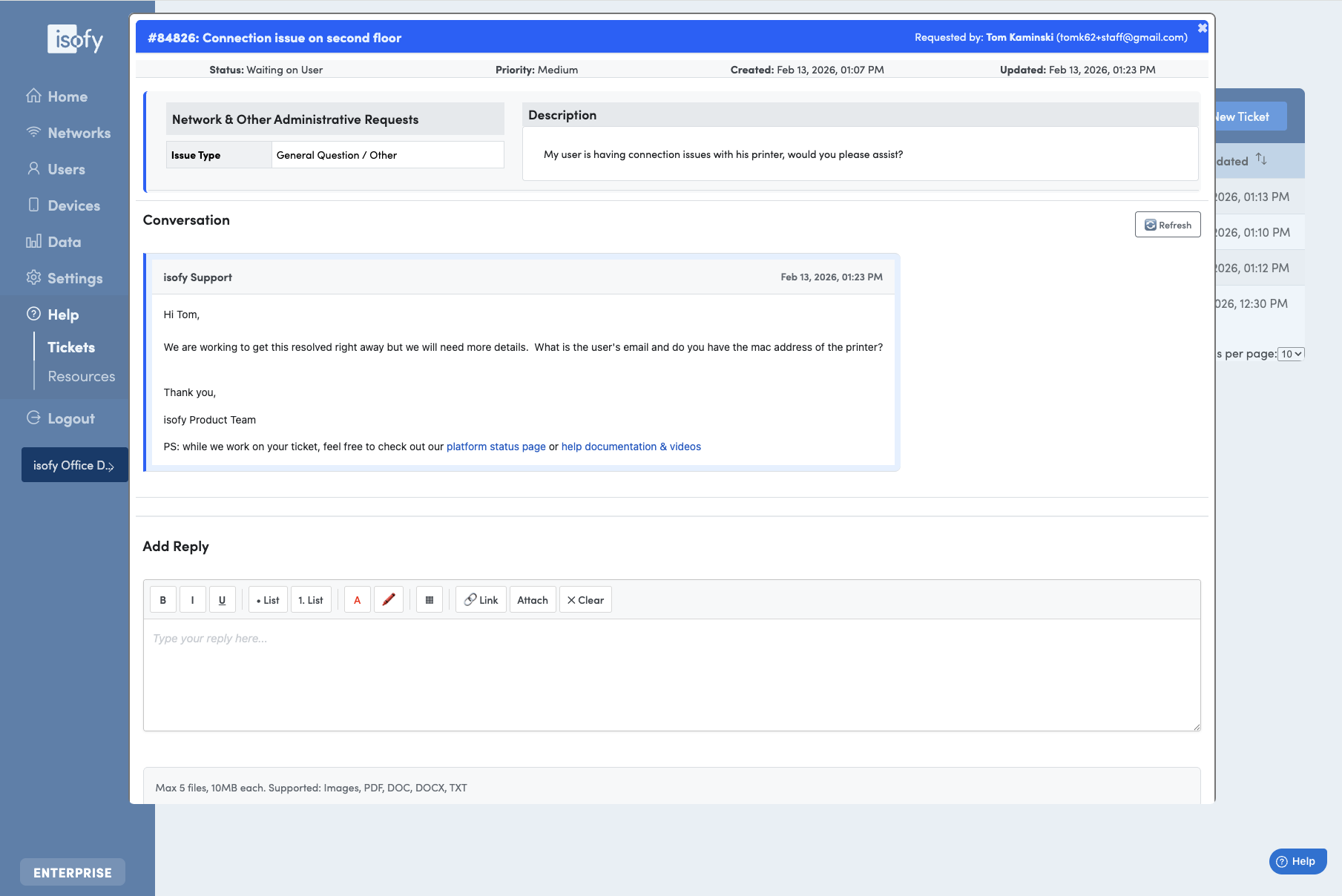
Here you can see a full history of the activity on the ticket (conversation) as well as add a reply.
To create a ticket, click on Add New Ticket on the upper left of the main Support Tickets screen. The new ticket screens will walk you through the process of collecting information about the nature of your request. These details are necessary to expedite a response and resolution.
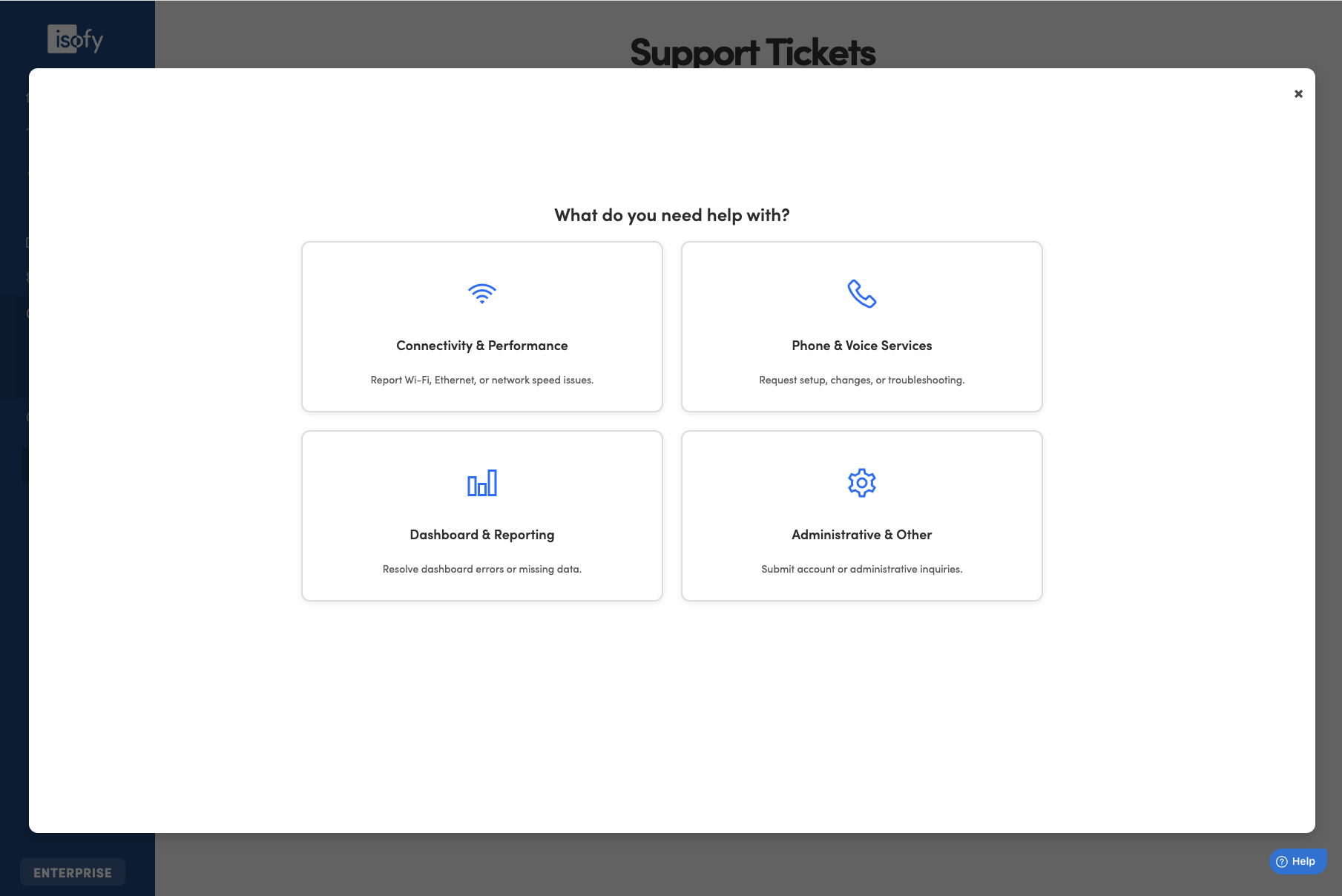
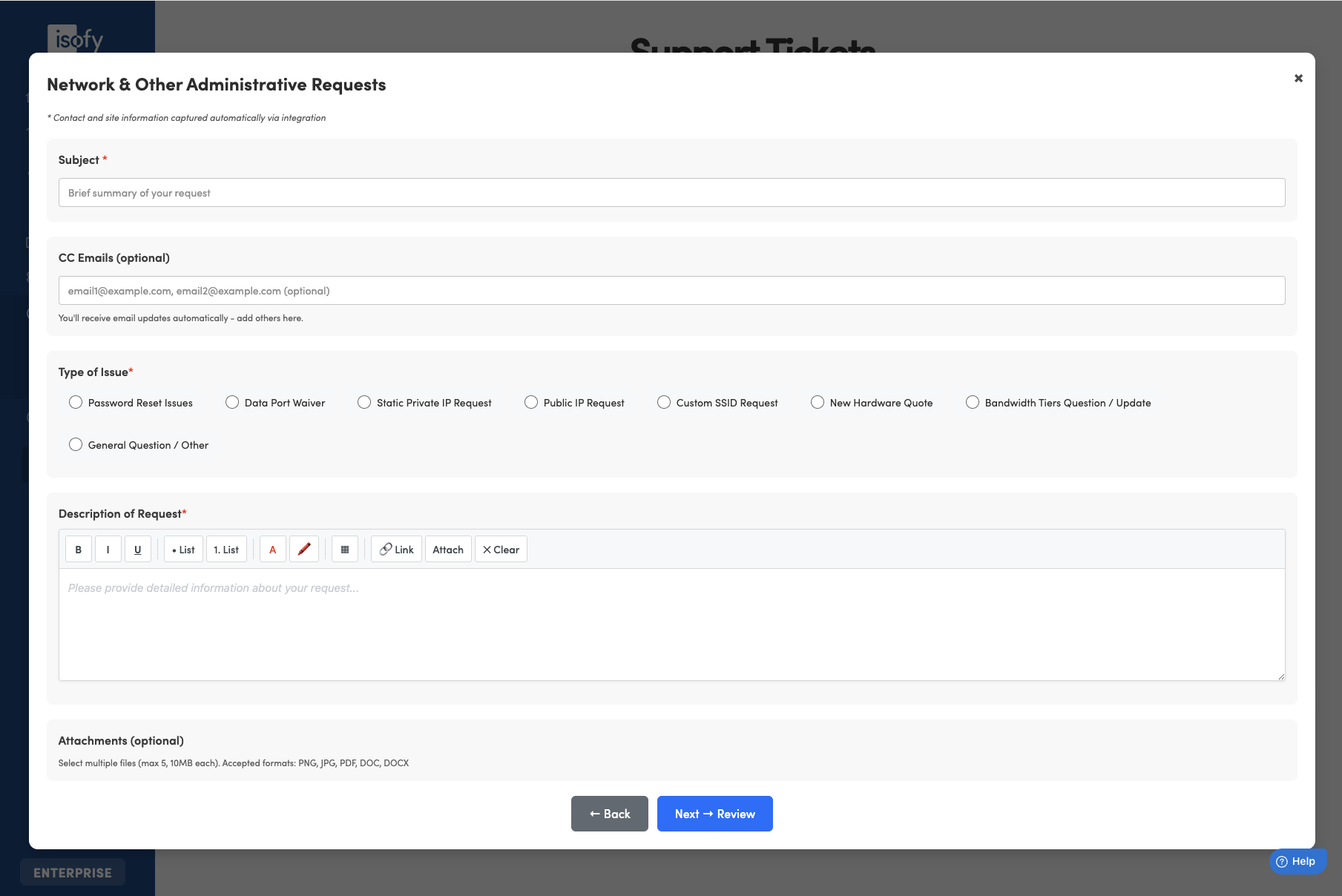
When done, click Next -> Review and then finally Submit Request.
Help -> Resources
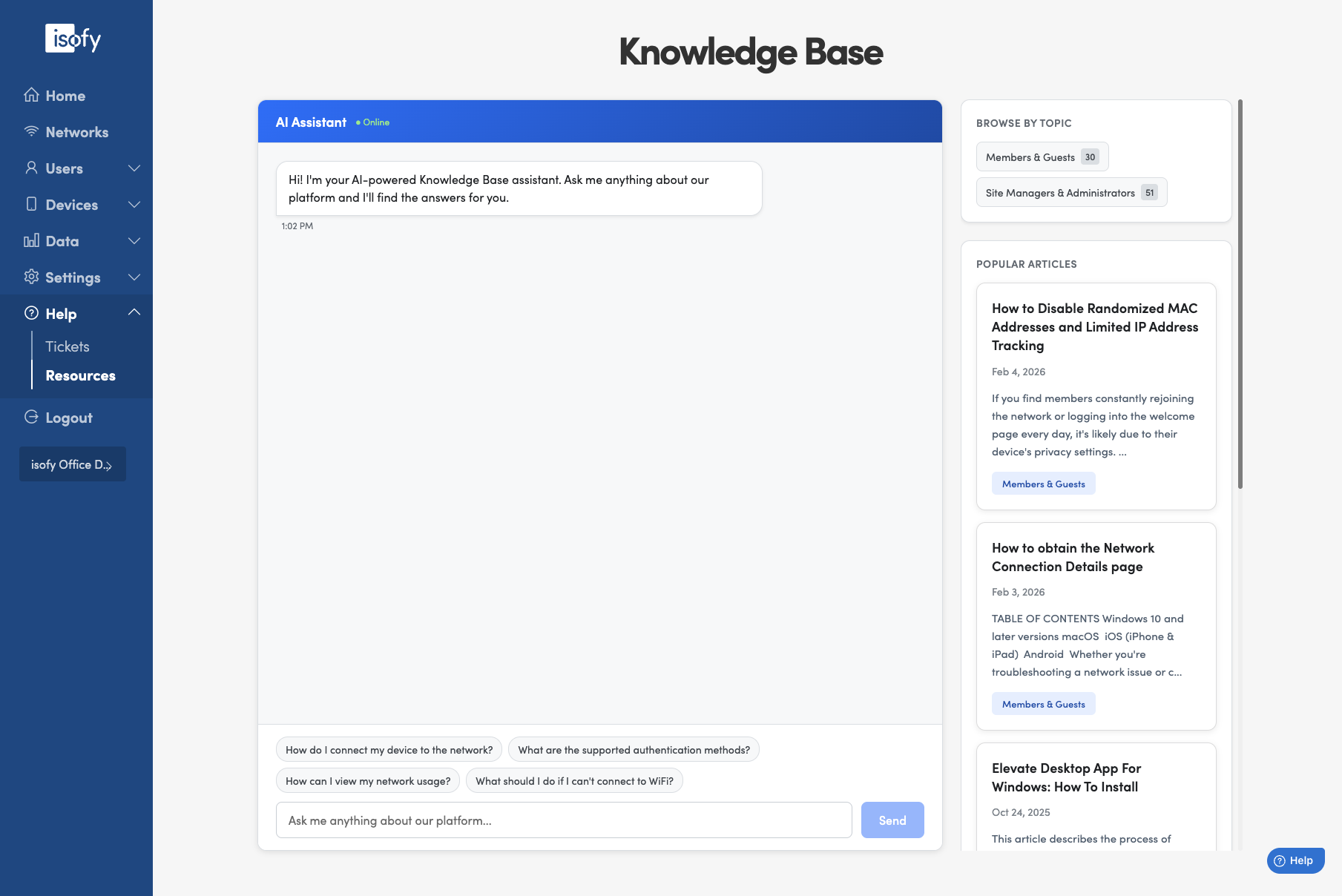
AI Assistant
Here you can ask natural language questions to the isofy Knowledge Base and receive relevant and intelligent answers based on the context of your question. The KB articles used to formulate the answer are also referenced in the response.
Browse by Topic
Use this section to navigate by topic to see the available knowledge base content.
Popular Articles
Browse the most commonly accessed articles than typically answer most support questions.
Was this article helpful?
That’s Great!
Thank you for your feedback
Sorry! We couldn't be helpful
Thank you for your feedback
Feedback sent
We appreciate your effort and will try to fix the article