The isofy Support Chat Widget lets you connect with the isofy support team in real time, directly from your admin dashboard. This article explains how to use the chat widget, what to expect during a conversation, and when to use chat versus a support ticket.
TABLE OF CONTENTS
Overview
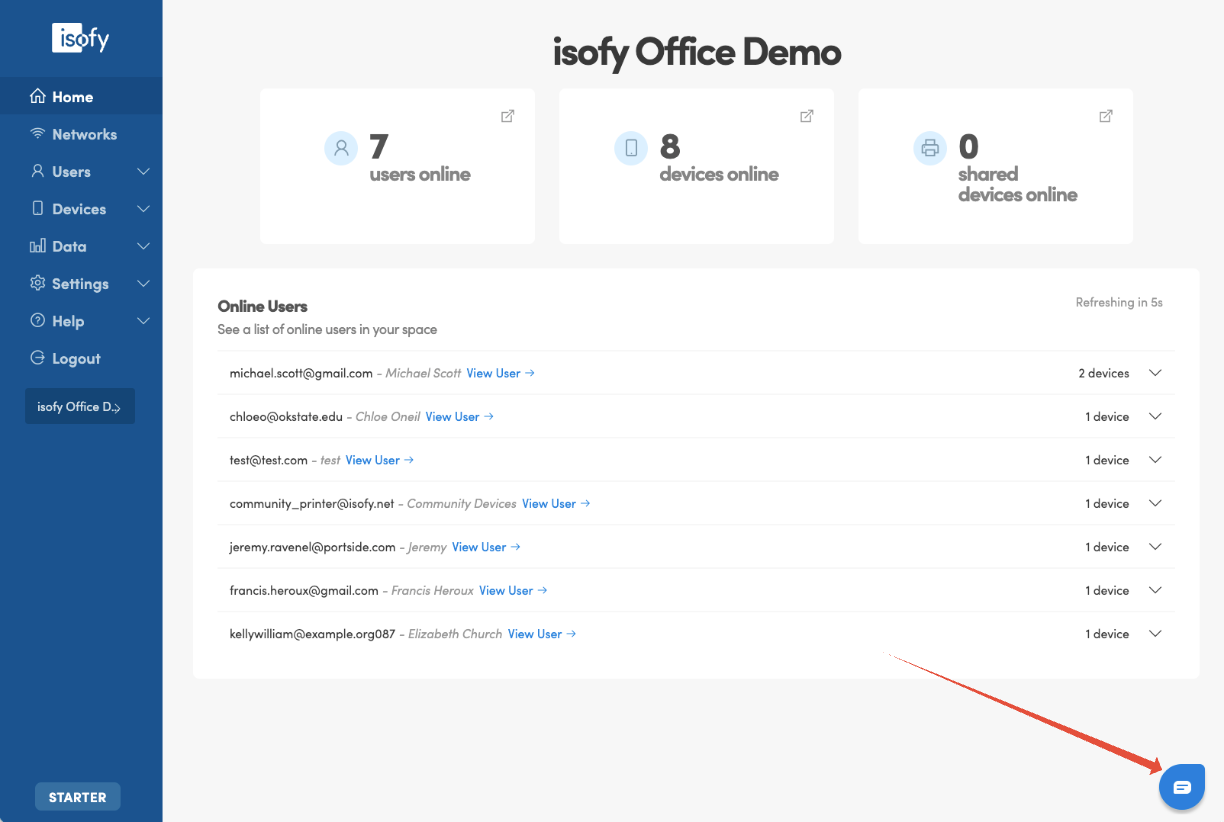
The isofy Support Chat Widget is a live chat tool built into your admin dashboard. It appears as a floating button in the bottom-right corner of every page in your dashboard, giving you instant access to isofy support without leaving the screen you are working on.
The chat widget is completely separate from the Help menu. The Help menu provides self-service resources like knowledge base articles and support tickets. The chat widget provides real-time, two-way conversation with a member of the isofy support team.
Starting a Chat
To start a chat conversation:
- Click the chat icon in the bottom-right corner of your dashboard.
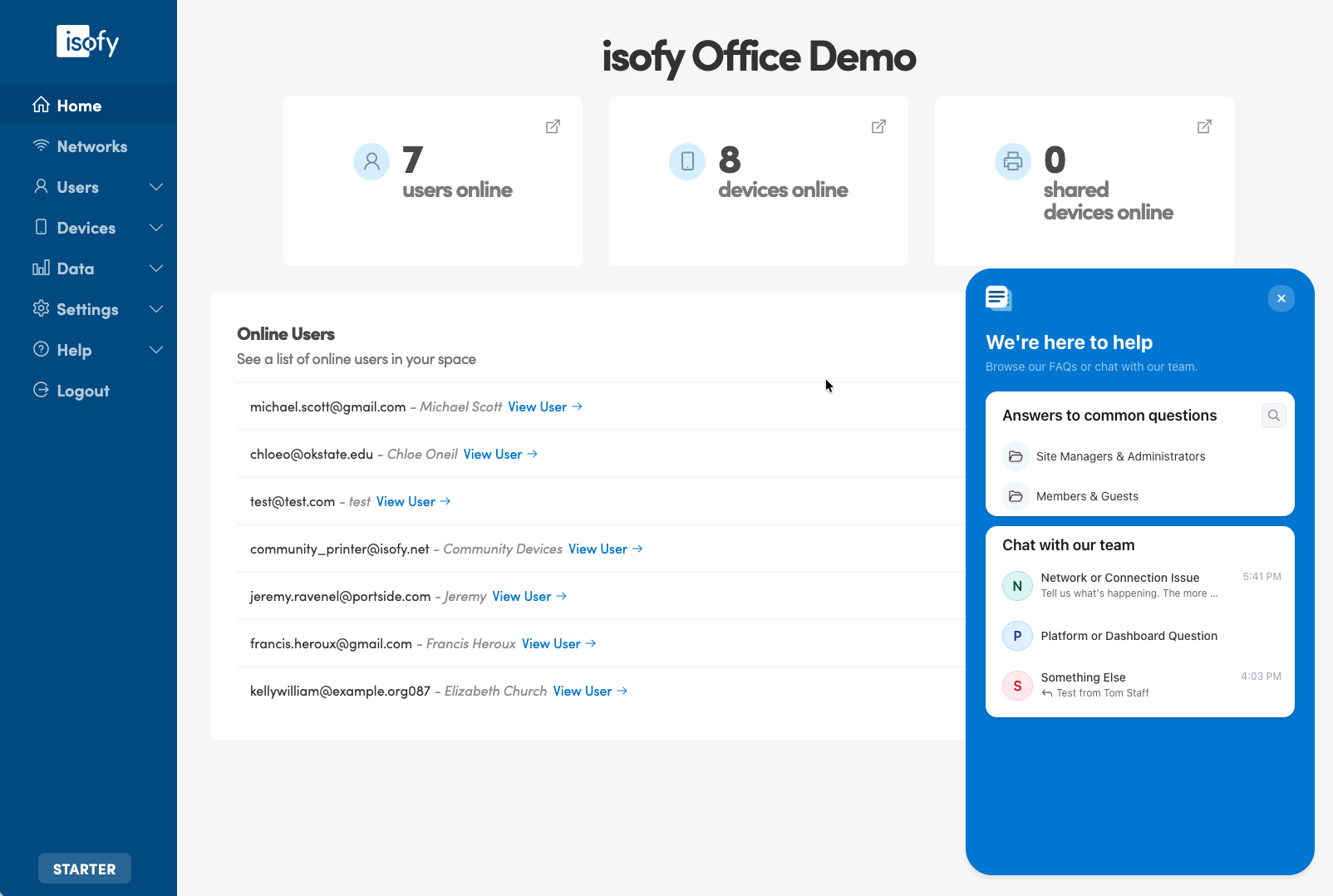
- The chat window will open. Under Chat with our team, select a relevant topic. Then type your message in the text field at the bottom of the window.
- Press Enter or click the send button to send your message.
- A support agent will respond in the chat window. You will see their replies appear in real time.
What to Expect
When you start a chat, here is what to expect:
- A support agent will join the conversation and respond to your message.
- You can continue to navigate your dashboard while the chat is open. The chat window stays active as you move between pages.
- If you close the chat window, you can reopen it by clicking the chat button again. Your conversation history will still be visible.
- Response times may vary depending on support availability. If no agent is immediately available, you may receive a follow-up response shortly after.
- For issues that require detailed troubleshooting or cannot be fully resolved through chat, the agent may open a support ticket on your behalf to ensure proper tracking and follow-up.
Chat vs. Support Tickets
Both chat and support tickets connect you with the isofy support team, but they serve different purposes:
Use Chat when:
- You have a quick question or need immediate guidance
- You want to troubleshoot an issue in real time
- You need help navigating a feature in the dashboard
- You want to confirm something before making a change
Use a Support Ticket when:
- You need to report a detailed issue that requires investigation
- You want to attach files or screenshots for the support team to review
- You need a written record of the request and its resolution
- The issue is not urgent and can be addressed during normal support hours
Support tickets can be created from the Help section of your dashboard navigation menu.
Tips for a Productive Chat
- Include the name of the page or feature you are working with so the agent can quickly understand your context.
- If you are experiencing an error, describe what you were doing when the error occurred and any error messages you see on screen.
- Be specific. For example, "the Members page is not loading" is more helpful than "something is broken."
- If the issue involves a specific device or member, have their name or MAC address ready to share.
Good to Know
- The chat widget is available on every page of the admin dashboard.
- Chat history is maintained by our support platform. If you close the window and reopen it, your recent conversation should still be visible.
- If the chat widget is not visible on your dashboard, your site may not have the feature enabled yet. Contact your isofy account representative for more information.
- The chat widget does not affect any other part of your dashboard. It runs independently and will not interrupt your workflow.
- If you clear your browser data or switch to a different browser, you may not see your previous chat history.
Was this article helpful?
That’s Great!
Thank you for your feedback
Sorry! We couldn't be helpful
Thank you for your feedback
Feedback sent
We appreciate your effort and will try to fix the article